
Explainer video software now covers several different production jobs. One tool turns an article or PDF into motion-led scenes. Another gives you character animation. Another records a product walkthrough. Another edits a talking-head video through its transcript. Putting them into one ranking without separating those jobs creates a useless winner.
This guide ranks tools by workflow fit. It uses current official product information, verified public product updates, and one documented TapVid run. I have not personally tested every paid plan in this list. When a conclusion comes from documentation or an official announcement, it is labeled that way.
The quick answer is simple. Choose TapVid when your existing content must become a structured motion-graphics explainer. Choose Vyond or Powtoon when reusable character and training assets matter. Choose Canva when your team needs familiar template editing. Choose Descript when the source is recorded speech or screen footage. Choose Camtasia for detailed screen tutorials and VideoScribe for a deliberate whiteboard style.
Quick comparison
|
Tool |
Best for |
Main input |
Editing model |
Important limit |
|---|---|---|---|---|
|
Existing content to motion explainer |
Article, PDF, script, URL, product copy |
Agent and scene workflow |
Final claims still need human review |
|
|
Vyond |
Character-led training and internal communication |
Prompt, script, scene assets |
Scene editor and AI tools |
Asset style can feel recognizable |
|
Powtoon |
Template-led training and presentations |
Prompt, document, template |
Timeline and scene editor |
Template-heavy output needs brand work |
|
Canva |
Fast branded explainers for general teams |
Templates, media, AI assets |
Multi-track editor |
Explanation structure remains manual |
|
Descript |
Talking head, podcast, and screen-based explainers |
Recorded audio, video, transcript |
Text-based editing |
Not a motion-graphics-first system |
|
Camtasia |
Product tutorials and screen instruction |
Screen recording, camera, media |
Detailed timeline |
More manual production work |
|
VideoScribe |
Whiteboard explainers |
Script and canvas assets |
Whiteboard canvas |
Narrow visual language |
|
Synthesia |
Avatar-led training and localization |
Script, slides, documents |
Scene and avatar editor |
Presenter format can dominate the explanation |
|
HeyGen |
Avatar and localized presenter content |
Script, avatar, translation |
Scene editor |
Best fit depends on needing a presenter |
|
Pictory |
Stock-led content repurposing |
Article, script, long video |
Storyboard and timeline |
Stock visuals may explain weakly |
|
Biteable |
Fast template videos for small teams |
Template, text, media |
Scene editor |
Less control for complex product mechanisms |
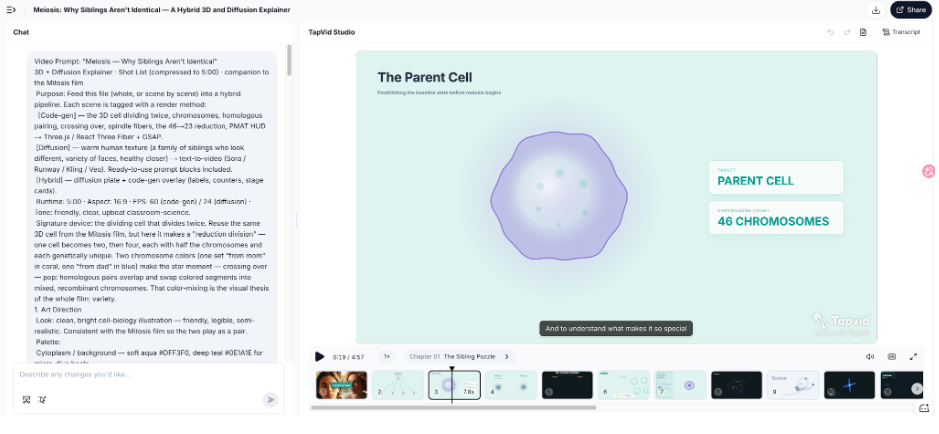
Figure: Actual TapVid software test with a detailed prompt, generated Studio output, runtime, and scene timeline
Tools for content, characters, and general editing
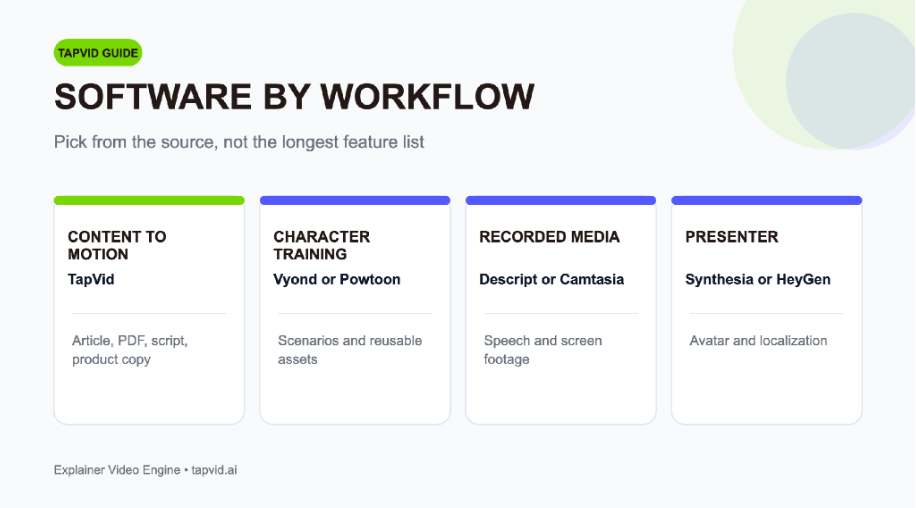
Figure: Explainer video software map by source type and output style
1. TapVid: best for turning existing content into motion explainers
TapVid is an Explainer Video Engine. The category matters. It does not begin with a request for an unrelated cinematic clip. It begins with your article, PDF, script, PRD, URL, or product copy and turns that material into connected scenes with narration and motion.
I used TapVid for a shared-inbox SaaS brief. The input named the viewer, duplicate-reply problem, routing mechanism, proof state, vertical format, English voice, and a target near sixty seconds. The generated video contained eleven scenes and ran for 66.837 seconds. The strongest part of the workflow was getting a coherent first cut without manually creating every composition. The remaining work was editorial: checking pacing, labels, factual accuracy, and whether each scene supported the argument.
TapVid's official X account has also shown a PDF, link, or paragraph being used as the source for a motion-graphics explainer. That is an official product claim, not independent proof. The documented run above is the first-hand evidence in this article.
Choose TapVid when you are a knowledge creator, product marketer, or independent builder with approved source material. It is less suitable when your main need is cinematic footage, a photorealistic character, or frame-by-frame manual animation.
2. Vyond: best for character-led training
Vyond has a mature library of characters, props, scenes, and business-focused assets. It suits training, internal communication, and scenario videos where recurring roles make the message easier to follow.
The company is adding faster AI creation while keeping a scene-based editor. In a verified official post, Vyond demonstrated a safety training video made with Vyond Go in a claimed 95 seconds, with the demo shown at double speed. Treat that as a product demonstration under controlled conditions, not a general production-time guarantee.
Vyond is a strong choice when the buyer wants editable character scenes and a reusable organizational style. The tradeoff is aesthetic familiarity. Output can look like Vyond unless the team invests time in art direction, custom assets, and consistent brand choices.
3. Powtoon: best for template-led training and presentations
Powtoon combines templates, animation assets, presentation logic, and newer AI features. It works well for teams moving from slide-based communication into video without adopting a professional motion tool.
An official Powtoon post emphasizes its Global Timeline for dragging, trimming, and reordering generated material. That editing control is important because AI generation is only useful when the buyer can finish the rough cut.
Choose Powtoon when training or internal communication teams want a broad asset library and familiar editing controls. Check the current plan carefully for export quality, asset access, collaboration, and AI usage. Template dependence is the main creative risk. Strong scripts and restrained design choices help the output feel intentional.
4. Canva: best for familiar branded editing
Canva is often the easiest tool to adopt because many teams already use it for social graphics, presentations, and brand assets. Its explainer video maker combines templates, drag-and-drop editing, media, and team collaboration.
The editor now supports more detailed timing. Canva's official account confirmed a multi-track video timeline with layering, trimming, and control over element timing. The same public thread began with one user's report that a redesign made transitions hard to find and the help guide appeared outdated. That single complaint is an anecdote, not broad sentiment, but it is a useful reminder to test the exact revision task your team performs.
Choose Canva when brand familiarity and fast general-purpose editing matter. Do not expect it to decide the explanation structure. Your team still needs to write the argument, assign visual jobs, and prevent a template montage.
Tools for recorded and specialist formats
5. Descript: best for recorded explainers
Descript is strongest when the source is spoken. It lets creators edit audio and video by editing a transcript, which makes it useful for talking-head explainers, podcasts, screen recordings, and repurposed long-form material.
The company continues to move editing tasks into its AI assistant. A verified official post says Underlord can tighten an intro, find a strong sixty-second section, cover cuts with zooms, and place captions. Those are official examples of supported tasks.
Choose Descript when the explanation already exists in a recording and the main job is editing. It is not the first choice for a motion-graphics sequence built from a PDF or PRD. You can add visuals and screen material, but the core mental model remains media and transcript editing.
6. Camtasia: best for detailed screen tutorials
Camtasia is a dependable choice for software training, product tutorials, and instructional video that needs precise screen capture. TechSmith's explainer video page describes screen recording, voice tools, animation, text, and callouts in one workflow.
Choose it when exact interface steps are the evidence. It gives you more timeline control than a template-first maker, but that also means more manual work. A long tutorial benefits from this precision. A frequent article-to-video workflow may not.
Test cursor emphasis, zoom behavior, callout consistency, caption export, and the time needed to update a changed interface. A screen tutorial that is accurate on launch day can become misleading after one product release.
7. VideoScribe: best for whiteboard explanation
VideoScribe is designed around a recognizable drawn-on-canvas format. This can work well for concepts, processes, and educational sequences where a hand-drawn reveal helps guide attention.
Choose it because you want that visual language, not because whiteboard animation is automatically more educational. The style becomes repetitive when every sentence receives an icon. A strong VideoScribe project still needs careful script timing, spatial planning, and visual hierarchy.
Before buying, test custom asset import, drawing paths, voice timing, brand controls, export resolution, and how easily a middle section can be revised.
Tools for avatars and fast template production
8. Synthesia: best for avatar-led training
Synthesia focuses on AI presenter videos and localization. It fits internal training, onboarding, and standardized communication where a visible speaker is part of the format.
Choose it when the presenter is useful. Do not choose it merely because avatars are available. A complex mechanism may need diagrams, product screens, and controlled motion that the presenter should support rather than replace.
Review the current Synthesia product and pricing pages for avatar access, minutes, collaboration, languages, and plan limits. Test pronunciation and translated timing with your real terminology.
9. HeyGen: best for localized presenter content
HeyGen also centers avatar and translation workflows. Its AI video explainer page positions the product for brand explainers with narration and on-screen visuals.
Choose HeyGen when you need a presenter, creator twin, or localized talking-head format. If the job is to turn a dense PDF into a visual argument, compare the workflow with a motion-first Explainer Video Engine.
Verify current plan limits, consent controls, export rights, translation behavior, and the cost of the volume you expect. Avatar realism is only one criterion. Script quality and supporting visuals still decide whether the viewer understands.
10. Pictory: best for stock-led repurposing
Pictory is built for turning scripts, articles, and long videos into shorter content using stock media, captions, and an editable storyboard. It can be a practical fit for publishers and social teams that need efficient repurposing.
The main tradeoff is explanatory precision. Stock footage can set context or mood, but it may not show a product mechanism. Test a source with an abstract idea and see whether the visuals add meaning or simply remain topically related.
Check Pictory's current pricing and feature pages for video minutes, stock access, brand controls, team features, and AI usage. No pricing number from memory should decide the purchase.
11. Biteable: best for quick template explainers
Biteable offers a straightforward scene-based workflow and templates aimed at business video. It can suit a small team that needs a clean result quickly and accepts the creative boundaries of a template system.
Choose it for speed and simplicity. Avoid forcing a complex technical explanation into a format that supports only broad scenes and short text. Test whether you can show the product mechanism, not just the problem and benefit.
Review Biteable's current pricing for export, branding, collaboration, and usage limits. Use a trial project with the exact aspect ratio and publishing channel you need.
How to choose explainer video software
Start from the source and the desired proof.
-
Existing article, PDF, script, or product copy that needs motion-led structure: test TapVid.
-
Character-led scenario, training, or internal communication: test Vyond and Powtoon.
-
General branded template workflow: test Canva and Biteable.
-
Talking head, podcast, or recorded screen material: test Descript.
-
Detailed software tutorial: test Camtasia.
-
Whiteboard format: test VideoScribe.
-
Presenter and localization: test Synthesia and HeyGen.
-
Stock-led repurposing: test Pictory.
Then run the same brief through the finalists. Record preparation time, first-cut time, scene count, factual errors, edit behavior, export quality, and effective cost. Do not compare polished vendor demos with your rough first attempt in another tool.
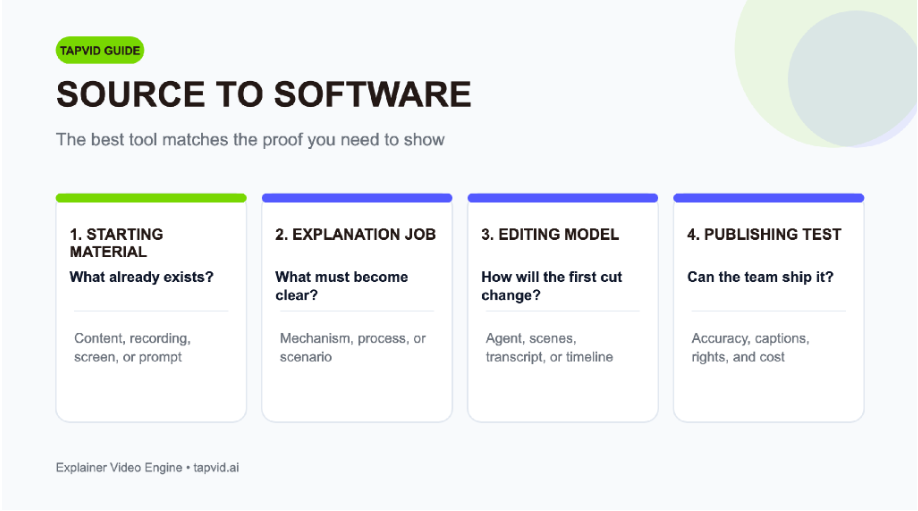
Figure: Explainer video software selection flow from source material to workflow fit
A fair testing brief
Use one approved source with a visible mechanism. A good test is a short software workflow with a clear old state, new process, and proof. Require a sixty-second horizontal version and one vertical adaptation. Include five exact facts, one product label, and one CTA.
Ask every tool to perform the same correction after the first cut. Change one fact, replace one visual, shorten one section, and adjust the CTA. Record whether the entire project regenerates or only the affected part.
The winner is not the fastest first draft. It is the tool that reaches an accurate publishable version with the least waste.
Frequently asked questions
What is the best explainer video software?
There is no single best tool for every format. TapVid fits existing content to motion explainers. Vyond and Powtoon fit character or training content. Descript fits recorded media. Camtasia fits screen tutorials.
What is the easiest explainer video software?
Ease depends on the source. Canva and Biteable are familiar for template editing. TapVid reduces manual scene construction when the source is an article, PDF, or script. Descript is easy when editing spoken media through text.
Can explainer video software replace an agency?
It can replace parts of production when the message and source material are approved. Agencies remain useful for discovery, stakeholder facilitation, custom art direction, and high-stakes production management.
What should I test before buying?
Test source import, script control, scene logic, revision behavior, brand fit, captions, exports, rights, data handling, and total cost at your expected volume.
Is AI explainer video software the same as generative video?
No. Some tools create independent clips from prompts. Explainer software should preserve a logical sequence from your content and connect narration, visuals, and proof.