
In this tutorial you will learn how to deploy your Laravel projects to a Digital Ocean droplet.

¿Digital Ocean? Droplet?
Digital Ocean offers one of the best VPS services and at a fair price.
Unlike traditional hosting (those that have CPanel), in Digital Ocean you can configure the stack that your application requires yourself. In addition, the support team responds attentively and in a short time.
A droplet is a virtual machine, which you will have access to via SSH (via console).
In Digital Ocean you can create as many droplets as you need. You can even have multiple apps on top of the same droplet (which is very useful if you want to have your first projects online).
Likewise, in Digital Ocean the payment is per use.
That means that if in the middle of the month you want to turn off the droplet you created, or cancel it, you can do so and thus pay only for what corresponds ?
So, let's get started.
Register on Digital Ocean (get $100 free)
Registration on Digital Ocean is very easy to follow, and now I will explain how to do it step by step. But first I want to tell you something.
If you register on the platform at the invitation of some user, you get $100 free welcome. In this case, I I invite you to register by clicking here.
Signing up through my referral link doesn't cost you any additional costs, but it does give you a benefit: get $100 initially, which you can use to sign up for the service for the first 2 months.
Also, if you have registered through my invitation and have any questions about this tutorial, do not hesitate to use the contact section or write your question in the comments, which will surely help you.
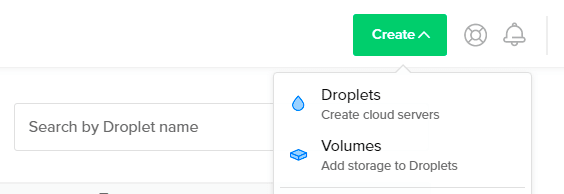
Pressing this button will load a page to configure the parameters of the droplet to be created.
The first thing we'll do is define an image.
In our case we will use the stack LAMP so you don't do all the setup from 0.
To do this, you must go to the Marketplace and select LAMP on Ubuntu 20.04.
You actually have a search engine, so you can type LAMP to find the image more easily:

The next thing will be to define the size that our droplet will have. Each option has different characteristics and involves a price to pay per month.
Even the price per hour is detailed, because if we decide to suspend our droplet, We will only be charged for consumption corresponding.
For this example, we're going to choose the most basic plan.
Remember that Easily Scaled in the future, to a droplet with more resources, if necessary.

After that, it is not necessary to change anything else. Although if you wish you can also:
- Use a specific datacenter (the one closest to where your audience is located)).
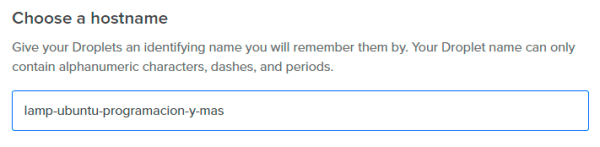
- Name your droplet (so it's easy to identify it in the future when you have more).
Authentication
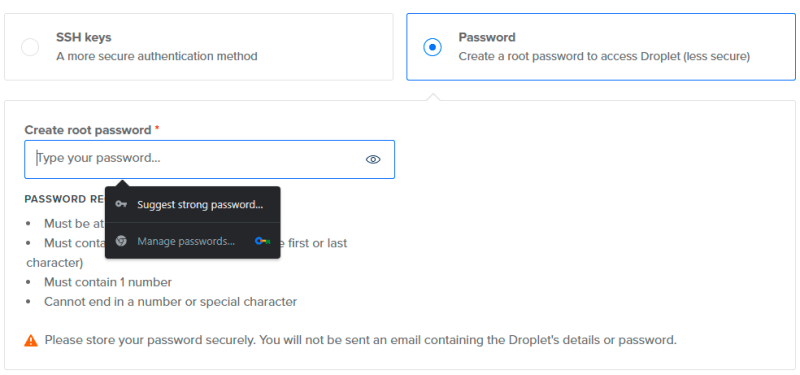
Regarding authentication, Digital Ocean offers us 2 alternatives:
- Generate SSH keys
- Assign a password to our droplet
You can use the alternative you prefer:
- The first alternative disables password login, thus preventing "brute force" attacks".
- However, if you are learning, the most practical and direct thing to do is to define a password.
In this guide we will opt for the second option:
The last step is to click the "Create Droplet".
But remember:
This button will not be enabled until you enter a strong password.
Digital Ocean requires us to have a password that meets the following conditions:
- Has at least 8 characters
- Contains at least one uppercase letter (not counting the first and last characters)
- Contains at least one number
- It does not end in number or in a special character
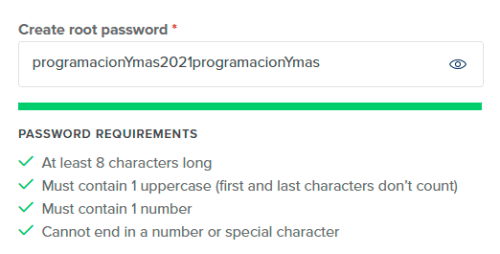
Once you have entered a password, remember to keep it in a safe place, as it will You will not receive an email with your authentication details for the droplet.
Soon we will use this password to connect to our droplet through the terminal (SSH connection).
- If you are on Windows you can use the tool PuTTy to make this connection possible.
- On Linux or Mac, the terminal itself supports the command
sshto achieve this.
Droplet settings
To configure our VPS, and install what is necessary for our Laravel project to work, the first thing is to connect via SSH.
If you wish, you can accompany this written tutorial by watching this other one in video format. But it's optional.
Once connected to the droplet:
The first thing we will do is make sure that everything is correctly updated:
sudo apt-get update
sudo apt-get dist-upgrade
Surely your droplet is already preconfigured, if you chose the LAMP option. But these commands give us the security of having everything up to date.
Once we have updated, we activate the module mod_rewrite command with the following command:
sudo a2enmod rewrite
This module is what allows Laravel to define friendly URLs:
Enables the operation of routes.
Configuring MySQL for Production
We can use the following command, to start the MySQL configuration:
mysql_secure_installation
Here we will be asked to enter the password (in more recent versions it does not ask for it; if it does, we must paste what we copied before).
The command will start the setup, and ask you for various details.
To answer with a yes you must write a "and".
Any other character corresponds to a no. Respond as appropriate.
Usually the questions will be the following (and the answers we will use in this case are also the following):
- ¿Do you want to install a plugin to validate password strength?: No
- ¿Do you want to change the password for the database primary user?: Yes
- New password: [Here you must enter the one you consider appropriate; it is important to change the password for security reasons and have it saved somewhere important]
- Re-enter the password: [We repeat the new password that we will use from now on]
- ¿Do you want to delete anonymous users? Yes
- Disable Remote Database Connection: Yes
- ¿Do you want to delete the test tables and their accesses? Yes
- ¿Do you want to reload the privileges of the tables now? Yes
Installing phpMyAdmin
Install phpMyAdmin is an optional step.
We are going to do it as part of this tutorial since most when they start they usually rely a lot on this tool to run quick queries.
As needed, remember that you can then also enable a remote connection and use the MySQL client of your choice. For example:
- Workbench,
- DataGrip,
- Sequel Pro,
- and so on.
Then, to have phpMyAdmin, run the following command to start the installation process:
sudo apt-get install phpmyadmin
The installer will ask you several questions. We have to:
- Select Apache2
- Choose YES when you ask us
Configure database for phpmyadmin with dbconfig-common? - Enter our new MySQL password (which we set up moments ago))
- Repeat the password again
Once installed we edit the Apache configuration file:
sudo nano /etc/apache2/apache2.conf
And we add this line at the end of it all:
Include /etc/phpmyadmin/apache.conf
This completes the installation, and we must restart Apache before continuing:
sudo service apache2 restart
The installation we have done so far will allow us to manage our databases easily by accessing /phpmyadmin from our droplet's IP.
So far, the setup is useful for any PHP project. Now we will move on to setting up more specific points in relation to Laravel.
Setting up our Laravel project
The first thing we will do is install Composer:
curl -sS https://getcomposer.org/installer | php
sudo mv composer.phar /usr/local/bin/composer
And then Git, so we can then deploy through a repository.
sudo apt-get install git
Note:
Actually, the LAMP image you chose (when creating the droplet) already installs Composer and Git. But I'll leave these commands anyway to be safe.
At this point:
We have everything ready to clone our Laravel project, from a remote repository, which can be found on GitHub, Bitbucket, GitLab, or another.
To do this, we are located in /var/www as follows:

¡And we clone our repository!
In my case I will use:
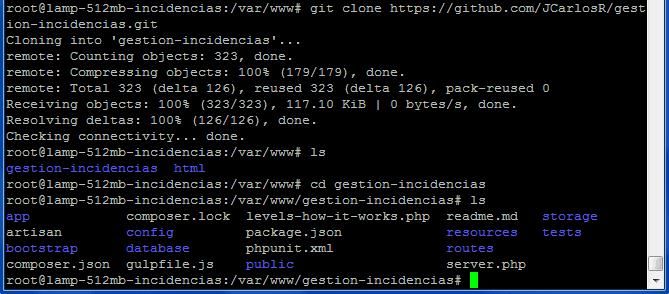
git clone https://github.com/JCarlosR/gestion-incidencias.git
How my project is called gestion-incidencias, I will verify that this folder has been created correctly by entering with cd and then querying its contents with ls.
As shown in the image:
Install dependencies
Our folder has been created. But remember:
A Laravel project has dependencies over other packages. These dependencies are declared in the composer.json.
So to install what is necessary we run the following command:
composer install
Downloading dependencies will likely take a couple of minutes, depending on the project.
Install PHP extensions
Note:
If you can't install the dependencies because you don't have the php extensions required by Laravel, and you use php8.2, You can install them using:
sudo apt-get install php8.2-curl php8.2-gd php8.2-mbstring php8.2-intl php8.2-mysql php8.2-xml php8.2-zip
The command composer install create a folder vendor inside the folder of your Laravel project, with the dependencies that have been downloaded.
Once this dependency download is complete, we need to give permissions to the storage.
To this end, we execute:
sudo chown -R www-data: storage
sudo chmod -R 755 storage
VirtualHost to the public folder
¡Cheer up! We are very close to the end.
What is needed is for our web server to recognise the folder public as the base route of our project.
To do this, we proceed to edit the following Apache configuration file:
nano /etc/apache2/sites-enabled/000-default.conf
Here we have to replace these lines:
DocumentRoot /var/www/html

<Directory /var/www/html/>
For these 2, respectively:
DocumentRoot /var/www/gestion-incidencias/public

<Directory /var/www/gestion-incidencias/public/>
And add these 2 lines inside the label Directory:
RewriteEngine On
RewriteBase /var/www/gestion-incidencias/public
We save the changes to the file, and restart Apache one last time:
sudo service apache2 restart
Creating our configuration file .env
Our server is now set up.
But let's remember that every Laravel project is based on a .env to store our system credentials there.
This file .env is part of our .gitignore so (as expected) it wasn't cloned and we have to create it.
For this we have 2 alternatives:
- Copy the sample file that comes with Laravel and replace the credentials there.
- Create a new, empty file and paste the contents of our file there
.envLocal.
In the end, the result is the same.
If you opt for alternative (1) you can use the following 2 commands. If you opt for the alternative (2) just use the 2nd and the file will be empty.
cp .env.example .env
nano .env
Please note that:
We are going to have a different configuration for production and development.
That is, our archives .env will be different.
A simple example to understand this is the following:
Locally I don't use a password to connect to MySQL, but in production it's essential to define a.
Database, Migrations and Seeders
In my archive .env The variable DB_DATABASE has as its value incidencias.
That means that's the name of the database my project uses.
What I'll do then is create this database.
You must do the same:
Create the database that your project requires.
- You can do it from phpMyAdmin,
- or from the console itself (with
CREATE DATABASE incidencias;), - or importing a backup if you have one.
This database will be completely empty, but the migrations will work magic and create the tables:
php artisan migrate
If your seeders only contain test data that you use locally, you don't need to run it here.
But if your seeders add important initial data for the operation of your application, then you can run them with:
php artisan db:seed
Or failing that, use the following command (equivalent to the previous 2).
php artisan migrate --seed
And that's it.
¿You can't log in to phpMyAdmin or Laravel fails to run migrations?
Some students of the course commented on having problems with MySQL.
What happens is that in newer versions of the image LAMP, The droplet includes a Latest version of MySQL, What is the 8.
For this version, certain important changes occur:
- If you use the
mysql -u root -pYou'll notice that you don't need to enter a password to log in as the userrootof MySQL, even after we have defined a password when runningmysql_secure_installation. - This occurs because the Authentication Method by default, for the MySQL admin user, it is now
unix_socketinstead ofpassword. - While this looks like a security flaw, it's actually quite the opposite. Why? Because now the only users able to log in as
rootin MySQL we are the ones who have administrator privileges in the droplet. - In other words, it is not possible to connect as users
rootfrom our PHP applications, but now we must define a MySQL user for this purpose.
At least at this point, as I update this article:
The PHP library for MySQL (called mysqlnd) Doesn't support caching_sha2_authentication, which is the authentication method used by MySQL 8 by default.
For this reason:
We need to define specific MySQL users for our PHP applications (now that we have MySQL 8), and make sure that these users use mysql_native_password as an authentication method.
Let's see how to do it.
From the droplet, connect to MySQL by running:
sudo mysql
Once you've logged in, you can do the following to create a new database.
CREATE DATABASE bd_de_ejemplo;
Now, the following command creates a new user named usuario_de_ejemplo, Using the authentication method mysql_native_password.
The password we are defining for this user is password. You must replace this value with the password you want to use:
CREATE USER 'usuario_de_ejemplo'@'%' IDENTIFIED WITH mysql_native_password BY 'password';
We then assign permissions for this user, so they can make changes to the database bd_de_ejemplo:
GRANT ALL ON bd_de_ejemplo.* TO 'usuario_de_ejemplo'@'%';
In this way, the user we have created only has privileges on the indicated database, and not global permissions, as is the case with the user root.
Finally, we have to execute exit to exit MySQL.
Verify MySQL User
You can use the mysql -u usuario_de_ejemplo -p and enter the password you defined in the previous step.
If you do not enter a password, you will not be able to connect to MySQL using that username.
In this way, we validate that the user has been created correctly.
In fact, if you run SHOW DATABASES; after connecting to MySQL you will see that the user does not have access to other databases, unlike when the user is used root.