
In this tutorial you will learn how to consume an API (web services) and process the JSON response obtained.

API? Web services?
By chance of fate, you may not yet know very well the meaning of these terms, or the difference between the two concepts.
But don't worry.
You can watch the following video and clarify your doubts:
This tutorial is focused on how to consume an API or web services from an Android app.
If, for example, you have a database, but you don't have an API created. Then you should first define an API.
a API is an intermediary between a database and an application mobile (whether Android, iOS, or other technology).
If you want to learn how to develop an Android Medical Diagnostics app, Please do Click here.
In this series, you'll learn how to develop an API using Laravel, and how to program an Android app that consumes this API.
How to add Retrofit to our project
There are several ways to Add dependencies to our project.
In this case we will use the most common and recommended method: we will add Retrofit via Gradle.
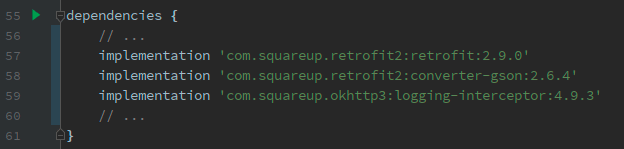
That means we need to go to our archive build.gradle and add the following lines:
implementation 'com.squareup.retrofit2:retrofit:2.9.0'
implementation 'com.squareup.retrofit2:converter-gson:2.6.4'
implementation 'com.squareup.okhttp3:logging-interceptor:4.9.3'
Wait, where do you say?
You must add the dependency in the file build.gradle at the module level.
On the left side of Android Studio you will find within Gradle Scripts 2 options with the same name. Make sure you select the right option:

Inside the file you must add 2 dependencies. One for Retrofit and one for GSON.
The third dependency, that of the logging interceptor, it's optional. But I recommend adding it to be able to debug the requests.
Great, I got it. But what is GSON? Wasn't JSON what we wanted to get?
JSON is a response format used by APIs. That's what we're going to get and process.
But GSON is an additional dependency, What works in conjunction with Retrofit to "convert the obtained JSON responses into Java objects".
Retrofit calls them "converters," and there are several of them. Even to "map" answers obtained in XML format.
Getting into action
Once you have the dependencies loaded into your project, the next thing is to configure Retrofit via an ApiAdapter and an ApiService.
¿Can't I make the request directly? I'm in a bit of a hurry.
You can, but seriously, I recommend creating these 2 files.
Once you understand it, then it will be Super easy to make requests, And best of all, your code will be tidy and you can easily replicate it to your Other projects.
First things first: Internet
Before we start setting up Retrofit in our project, it's important that our app can be connected to the internet.
To request this permission we must add the following line to our file manifest:
<uses-permission android:name="android.permission.INTERNET" />
A class and an interface
The ApiAdapter is a class that will be responsible for instantiating a Retrofit object (applying the Singleton design pattern), and this object will make requests possible.
In addition, in this class it will be defined the API base path What we want to consult.
The ApiService, on the other hand, is an interface. Here we are going to define abstract methods.
Each abstract method will represent a Specific path of our API.
By Example, We may have a method to perform a login. We pass it a username and password and get a token in response.
Other Example is that we pass the data of a product, so that the API registers it in the database. And we get as an answer an arrangement of possible errors in the data, or a boolean indicating that the record was satisfactory.
¿It makes sense, right??
To make it easier to understand, below you can see example codes for both concepts.
ApiService Example
In the following example of ApiService, 4 abstract methods have been considered.
Each method defines a path, and specifies which class will be responsible for processing the response obtained. I'll explain this in more detail in a moment. Let's go little by little.
-
The first method represents a GET request On the road
diseases. The answer will be a list of diseases. And this response is going to be processed thanks to theDiseasesResponse. -
The second method is a POST request On the road
upload/photo. This request is made by sending certain parameters. Among them, a String variable that represents a base64-encoded image. It is assumed that the API is ready to upload the photo through this path. -
The third method allows Login in an app. It is assumed that
LoginResponseIndicates the format for processing the response for this path. It should be in charge of parsing the possible token received, if the login was successful. -
The latter method allows Register a product through a POST request. It is assumed that the response will return an array with error messages, should the server deem it so. It all depends on the API. Here we are just looking at how to consume it.
public interface MyApiService {

    @GET("diseases")
    Call<DiseasesResponse> getDiseases();

    @FormUrlEncoded
    @POST("upload/photo")
    Call<SimpleResponse> postPhoto(
        @Field("image") String base64,
        @Field("extension") String extension,
        @Field("user_id") String user_id
    );

    @GET("login")
    Call<LoginResponse> getLogin(
    	@Query("username") String username,
    	@Query("password") String password
    );

    @FormUrlEncoded
    @POST("product")
    Call<SimpleResponse> postNewProduct(
            @Field("code") String code,
            @Field("name") String name,
            @Field("description") String description
    );

}
ApiAdapter Example
public class MyApiAdapter {

    private static MyApiService API_SERVICE;

    /**
     * Localhost IP for AVD emulators: 10.0.2.2
     */
    private static final String BASE_URL = "http://10.0.2.2:8080/api/";

    public static MyApiService getApiService() {
        // Creamos un interceptor y le indicamos el log level a usar
        final HttpLoggingInterceptor logging = new HttpLoggingInterceptor();
        logging.setLevel(HttpLoggingInterceptor.Level.BODY);

        // Asociamos el interceptor a las peticiones
        final OkHttpClient.Builder httpClient = new OkHttpClient.Builder();
        httpClient.addInterceptor(logging);

        if (API_SERVICE == null) {
            Retrofit retrofit = new Retrofit.Builder()
                    .baseUrl(BASE_URL)
                    .addConverterFactory(GsonConverterFactory.create())
                    .client(httpClient.build()) // <-- set log level
                    .build();

            API_SERVICE = retrofit.create(MyApiService.class);
        }

        return API_SERVICE;
    }

}
Organizing Our Code
As you've already noticed, we need to create a class and an interface.
In order to have our Project organised by folders, Let's create a folder io and to place there the 2 files mentioned above.
The name IO refers to input/output.
Note that I haven't put the import in the examples. But you can easily import the classes into Android Studio.
In addition to this, we need another group of classes that will allow us to "parse" the JSON responses obtained. We will save these classes in a folder model.
For example, if we have a Disease entity (with the data of a disease), then we're going to create this class inside the model.
This folder will contain our entire data model. That is, there will be one class for each entity we receive from the API.
At this point our project will look like this:

In the response, located inside the package io you will find our classes that serve to determine the format to be used in the "parse" of the JSON response to objects.
CLEARTEXT communication not supported error
If you get the following message as an error: CLEARTEXT communication not supported, means that you're wanting to communicate with a base URL that uses http instead of https.
It is advisable to use https, However, while developing you may want to connect to a local development IP with http.
If this is the case for you, go to the AndroidManifest.xml of your project and on the application Add the following attribute: android:usesCleartextTraffic="true".
This will solve it.