
In this tutorial we are going to see in a very specific way how to associate a domain acquired from Namecheap with a Digital Ocean droplet.
The same idea can be applied to a domain purchased through another provider, and also another hosting service.
Before we begin: What are Namecheap and Digital Ocean?
-
Digital Ocean is a company that offers us the VPS service. This means that we have access to a virtual private server, instead of shared hosting. If we are developing an application, we will have the freedom to configure the server according to our needs (in a shared hosting you usually have access to a panel and permissions are restricted).
-
Namecheap is a domain provider. As the name suggests, they promise to sell us domains at a fairly affordable price. The best thing is that it is a service that has many customers, but they still attend to our doubts in a timely manner.
Both are services that I use daily and I recommend them (the links above are for affiliation; if you get to hire one of the services and have questions, you can always leave a comment here on the page to help you).
I've never had any problems with them. In fact, I have contacted support on a few occasions and have received immediate attention.
Associate a domain with our droplet in Digital Ocean
-
First of all, we log in to Digital Ocean.
-
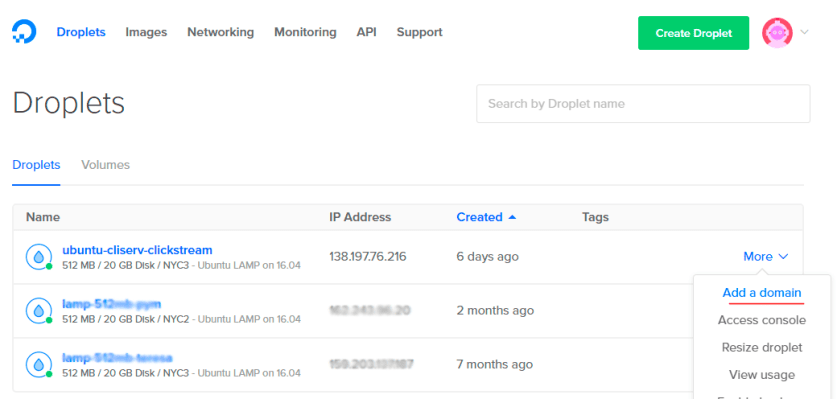
In the list of droplets, click on "More" and then "Add a domain" for the domain we want to associate.
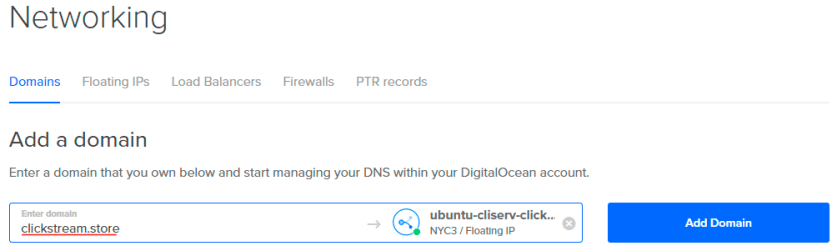
- Now we type in our domain (in our example it's
clickstream.store) and click on "Add Domain".
- Digital Ocean will load for a couple of seconds, and by the end you'll have set up the following for us.
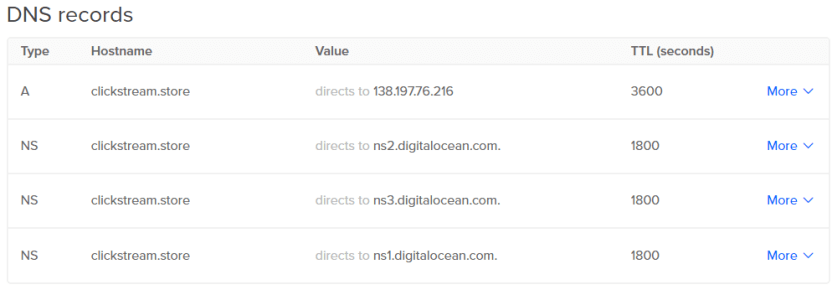
We have an A record whose value is the IP of our droplet.
What we need now is to set up on the Namecheap side. Let's go with it.
Setting up Nameservers on Namecheap
At Namecheap, acquiring a domain is very simple. All you have to do is enter their page, type in the domain you are interested in, and finalise the purchase by selecting one of the payment methods.
What we'll see now is, what's coming After you buy a domain.
-
We log in.
-
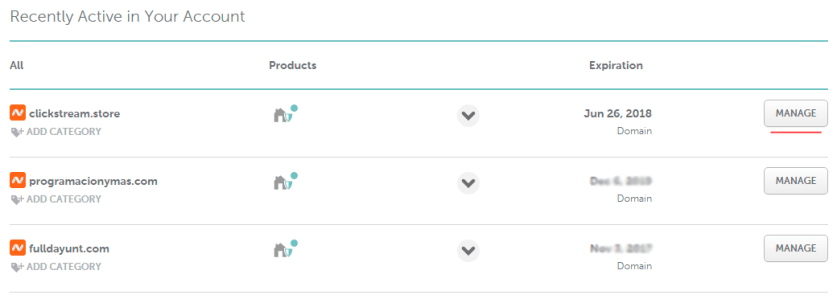
Let's go to our Dashboard.
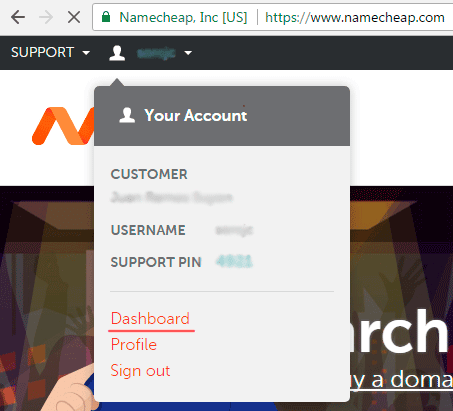
- Click on "Manage" for the domain we want to associate.
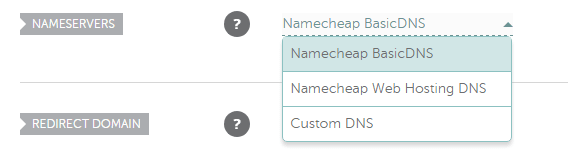
- At the bottom we have a "Nameservers" section. Here the default value is "Namecheap BasicDNS". We modify the value here to "Custom DNS"".
- When you click on this new option, about 2 fields will appear underneath. We proceed to add the 3 nameservers provided by Digital Ocean (by clicking on
ADD NAMESERVERto add a third field).
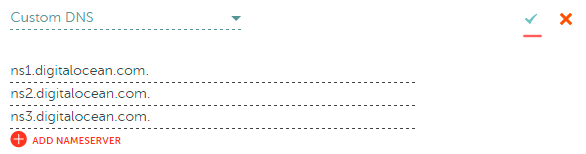
- After pressing save (using the green cross icon), we just have to wait for the changes to propagate.
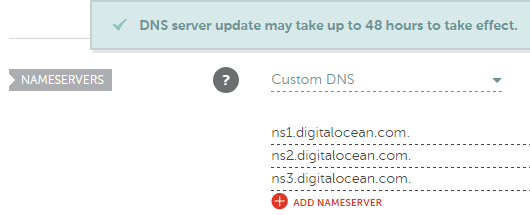
The alert tells us that it can take up to 48 hours. However, many times we can see the changes within a few minutes or the first few hours.
Things to keep in mind
The steps above associate our domain with our droplet, and should be enough to start using the domain instead of the IP.
However, depending on the application that we have configured in our droplet, it is likely that some more details will have to be changed.
That is, if you have followed all the steps, a few hours have passed and you still cannot see the changes, you should also consider doing some evaluations at the application level.
For example, in this case I have installed Prestashop in the droplet.
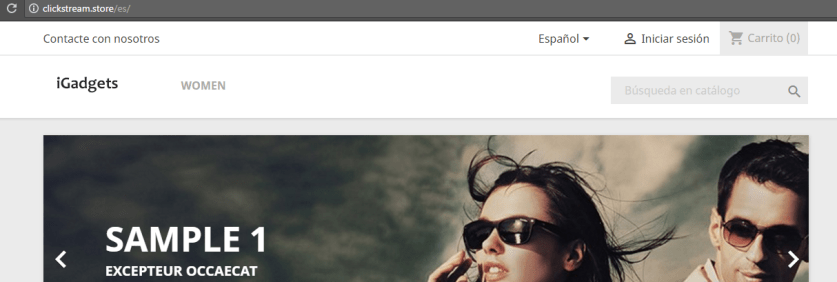
This Prestashop installation was causing a redirect of clickstream.store a 138.197.76.216/es/. And the solution was to declare in the database that the primary domain is clickstream.store (instead of the droplet IP).
After this change, I can now access the domain. And even if a redirect is applied to /es, The domain continues to show up in the address bar.
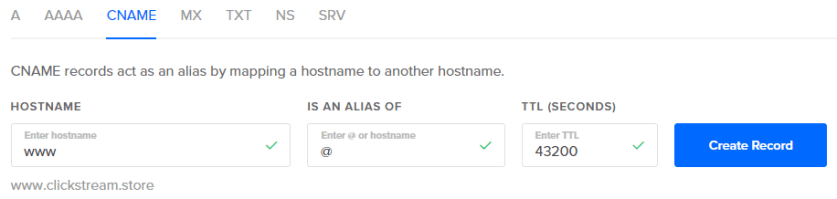
CNAME Registration for www
We must bear in mind that clickstream.store it already works properly. However, if we access www.clickstream.store We will see a message, indicating that the page does not exist.
To fix this we created a CNAME, with hostname www and aliases @. This at indicates what to use www it must be equivalent to visiting the primary domain.
Avoid duplicate content
It sometimes happens that our site is available from both directions, with and without www.
In that case We have to tell search engines that one route is equivalent to another, either using www at the beginning or not.
But that is not the only solution. We can also redirect all of our app's paths from www Oh, without www, or vice versa.
This is really a matter of personal preference.
Facebook redirects from facebook.com a www.facebook.com, but Twitter redirects from www.twitter.com a twitter.com.
I'd rather remove the letters than add them.
This redirection can be done by our web server. In the case of Apache we can do the following:
sudo nano /etc/apache2/sites-enabled/000-default.conf
With this command we are going to edit a file, and configure our VirtualHosts.
The number of VirtualHosts and their configuration will depend on your application (or applications, if you have several in the same droplet).
Here is a Example on how to redirect:
<VirtualHost *:80>
        ServerName timelypal.com
        ServerAdmin hola@programacionymas.com
        DocumentRoot /var/www/timelypal/public

        # Aquí debajo tengo más líneas
</VirtualHost>

<VirtualHost *:80>
        ServerName www.timelypal.com
        Redirect permanent / http://timelypal.com/
</VirtualHost>

Free SSL certificate (HTTPS)
If you're observant, you may have noticed that in the example above I used http instead of https.
That's because I'm assuming you don't have an SSL certificate set up in your droplet.
If you do have one, you can do something like the following.
Redirect from http (whether with or without www) a https however, www.
<VirtualHost *:80>
        ServerName timelypal.com
        ServerAlias www.timelypal.com
        Redirect permanent / https://timelypal.com/
</VirtualHost>

<IfModule mod_ssl.c>
<VirtualHost *:443>
        ServerName timelypal.com
        ServerAlias www.timelypal.com
        # Aquí puedes tener más líneas, de acuerdo a tu configuración

        Include /etc/letsencrypt/options-ssl-apache.conf
        SSLCertificateFile /etc/letsencrypt/live/timelypal.com/fullchain.pem
        SSLCertificateKeyFile /etc/letsencrypt/live/timelypal.com/privkey.pem
</VirtualHost>
</IfModule>