
IPTV Professional & IPTV Pro: The Complete Guide to Advanced Streaming
IPTV Pro refers to premium player applications that enhance how you navigate and manage streaming content, not the content itself. Many people assume upgrading to an IPTV Pro app will solve buffering issues or automatically include channels, but these apps are simply advanced media players that require you to add your own access details from a legitimate IPTV provider. IPTV Pro apps offer upgraded features like better playlist management, cleaner interfaces, improved electronic program guides, and backup options—but they don't provide channels or fix network-related streaming problems on their own.

Understanding the difference between an IPTV Pro player and an IPTV subscription service is essential before you spend money on either. The Pro label typically means you're paying for convenience tools and a more polished user experience, not for access to content. If you're experiencing buffering or playback issues, upgrading your device or switching to a wired internet connection will usually deliver better results than paying for a premium app.
This guide walks you through what IPTV Pro actually delivers, which features justify the upgrade cost, and how to choose a reliable app that matches your viewing habits. You'll also learn proper setup steps and best practices to get the smoothest streaming experience possible, regardless of whether you use a free or paid player.
What Is IPTV Professional and IPTV Pro?
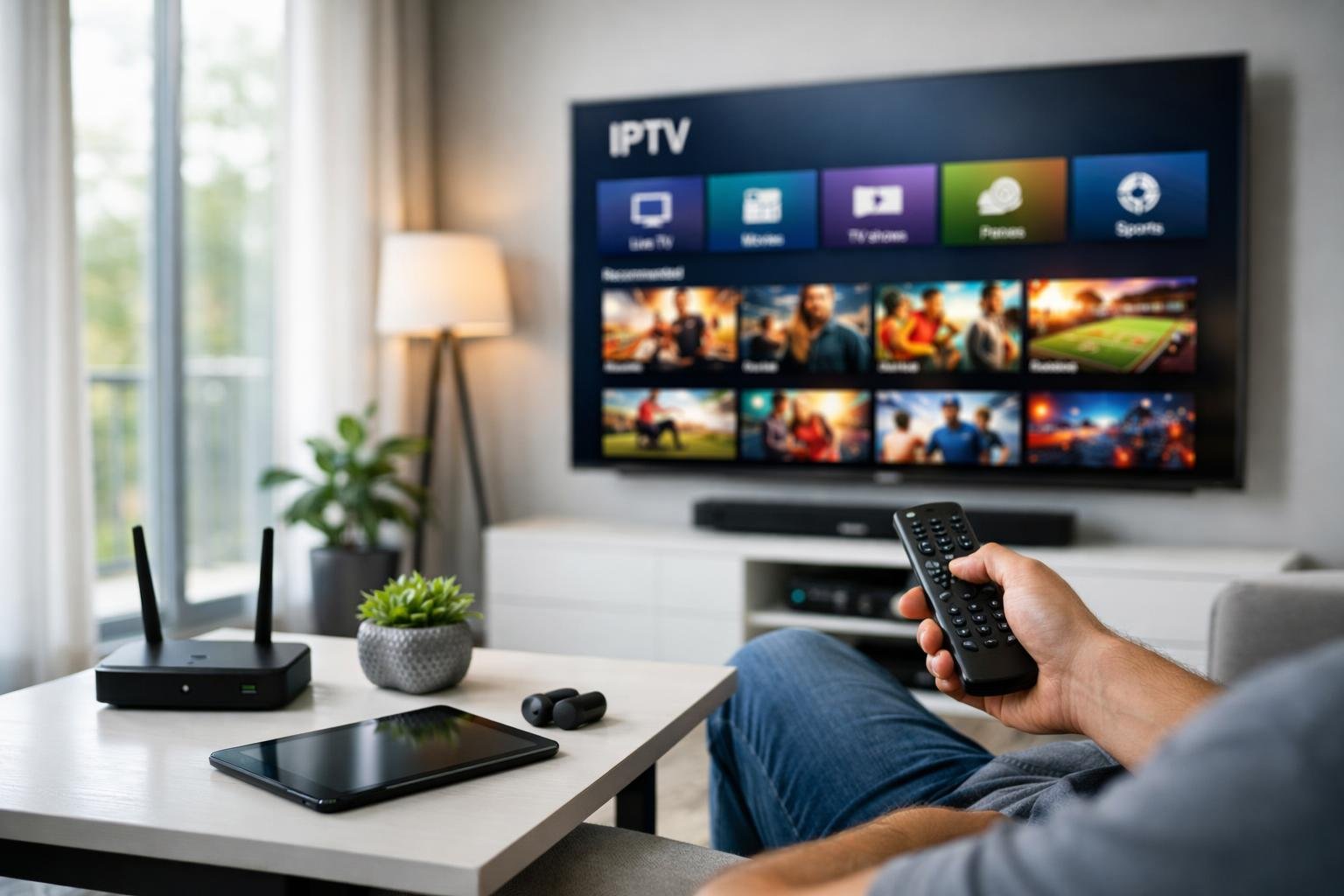
IPTV Professional and IPTV Pro refer to premium-tier IPTV player applications that offer enhanced features beyond basic streaming capabilities. These upgraded versions focus on improved user experience, advanced playlist management, and additional customization options.
Defining IPTV and IPTV Professional
IPTV (Internet Protocol Television) delivers television content through internet networks rather than traditional broadcast methods. You receive live channels, on-demand videos, and recorded content through your internet connection instead of satellite or cable infrastructure.
IPTV Professional typically describes advanced player applications designed for users who need more control over their streaming experience. These applications provide the interface and tools to organize, display, and play IPTV content.
Important distinction: IPTV Professional apps are players, not content providers. You still need valid access credentials from an IPTV service or authorized source. The "Professional" label indicates enhanced app functionality, not included channels or subscriptions.
Key Differences Between Standard and Pro IPTV
The main differences between standard and Pro versions center on functionality and convenience:
| Feature | Standard IPTV Player | IPTV Pro |
|---|---|---|
| Playlist management | Basic import/playback | Advanced organization, multiple lists, custom grouping |
| EPG (Electronic Program Guide) | Standard display | Enhanced navigation, better timezone handling, faster loading |
| User profiles | Single user | Multiple profiles with separate settings |
| Backup options | Limited or none | Full settings backup and restore |
| Interface | Ad-supported, basic UI | Cleaner interface, fewer or no ads |
Pro versions offer parental controls, external player integration, and expanded favorites capacity. You typically pay a one-time fee or subscription for these upgrades, while standard players remain free with limited features.
How IPTV Pro Differs from Other IPTV Players
IPTV Pro stands out through its emphasis on user control and customization rather than just basic playback. Unlike generic IPTV players that focus solely on streaming functionality, the IPTV Pro app includes tools for managing complex playlist structures and multiple content sources.
Other players may prioritize simplicity or specific device compatibility. IPTV Pro applications target users who manage large channel lists, switch between different services, or need reliable backup systems for their configurations.
The quality of your streaming experience still depends on your network connection, device capability, and content source stability. An IPTV Pro app improves organization and navigation but doesn't inherently fix buffering issues or enhance stream quality—those factors depend on your hardware and internet setup.
Core Features of IPTV Pro Solutions
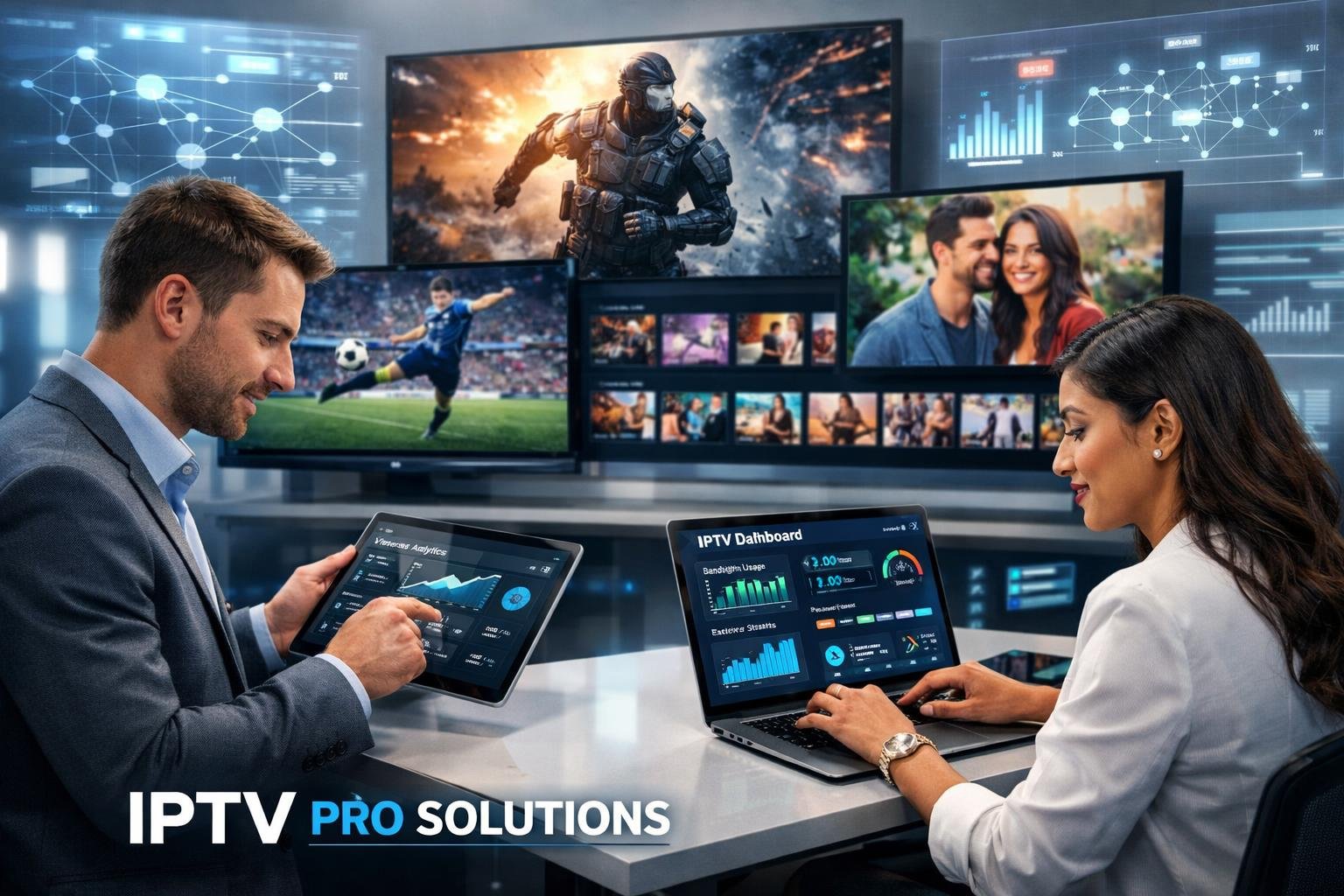
IPTV Pro platforms deliver streaming capabilities through several essential features that determine performance and user satisfaction. The core functionality includes live channel access, program scheduling tools, interface design, and cross-platform support that together define the viewing experience.
Live TV and On-Demand Entertainment
IPTV Pro gives you access to live TV channels alongside on-demand libraries containing movies and TV series. You can stream broadcast content in real-time while maintaining the flexibility to browse video-on-demand (VOD) catalogs at your convenience.
The platform organizes IPTV channels into categories that simplify navigation. Sports, news, entertainment, and international content typically appear in separate groups. VOD sections let you search through movie collections and complete TV series with episode-by-episode access.
Your streaming quality depends on both the IPTV player's decoder capabilities and your connection bandwidth. Hardware acceleration improves playback on high-resolution streams. Most IPTV Pro solutions support multiple formats and adaptive bitrate streaming to match your network conditions.
Electronic Program Guide (EPG) Integration
EPG support displays scheduling information for live channels directly within the IPTV player interface. You see current programming, upcoming shows, and broadcast times without switching applications or checking external sources.
EPG integration methods:
- Automatic import through Xtream Codes API connections
- Manual URL entry when using M3U playlist formats
- Periodic updates to refresh program schedules
The EPG data quality varies by provider and refresh frequency. Your service should update guide information daily to maintain accuracy. Some IPTV Pro applications cache EPG data locally to reduce loading times when browsing channels.
User-Friendly Interface and Usability
A user-friendly interface reduces the learning curve when you first launch the application. IPTV Pro players prioritize simple menu structures and quick access to recently watched content.
Navigation speed matters during channel switching and menu browsing. Lightweight applications respond faster to remote control inputs. You should be able to add playlists, rename categories, and reorder favorites without technical knowledge.
Mobile versions adapt layouts for touchscreen interaction. Tablet and phone interfaces typically feature gesture controls and portrait mode optimization. Remote control compatibility becomes essential on TV boxes and smart televisions where you navigate using directional buttons.
Multi-Device Compatibility
IPTV Pro solutions run across Android TV, Fire TV devices, smartphones, tablets, and certain smart television platforms. Your subscription credentials work on multiple device types within your connection limits.
Platform availability:
| Device Type | Installation Method |
|---|---|
| Android TV/Google TV | Google Play Store |
| Fire TV/Fire Stick | Amazon Appstore or sideload |
| Android smartphones | Google Play Store |
| Smart TVs (Android-based) | Native installation |
| Set-top boxes | APK file installation |
You can switch between devices without reconfiguring playlists if using Xtream Codes authentication. M3U URLs remain consistent across platforms but require manual entry on each device. Connection limits prevent simultaneous streaming on too many screens, so you need to stop playback on one device before starting on another.
Advanced Streaming and Personalization Options
IPTV Pro delivers sophisticated tools that let you customize how you access and consume content. These features include flexible playlist formats, robust security controls, intelligent content tracking, and multitasking viewing modes that adapt to your preferences.
M3U Playlists and Xtream Codes Support
IPTV Pro supports both M3U playlists and Xtream Codes, giving you flexibility in how you configure your service. An M3U playlist is a file format that contains URLs pointing to streaming channels, which you can load directly into your player using an M3U link. This method works well if your provider supplies a single URL that updates automatically with channel changes.
Xtream Codes offers a more advanced integration method. Instead of a basic M3U link, you receive login credentials and a server URL that provides access to organized channel lists, EPG data, and VOD libraries through a structured API. This approach typically delivers faster channel loading and better organization compared to standard M3U playlists.
You can switch between these methods based on your provider's offerings. Some services support both formats, while others specialize in one. The Xtream Codes protocol generally provides superior performance for large channel lineups because it handles data more efficiently than parsing lengthy M3U playlists.
Parental Controls and Security
Parental control features in IPTV Pro help you manage what content household members can access. You can set up PIN-protected profiles that restrict access to adult channels or specific content categories. This ensures children only view age-appropriate programming without constant supervision.
Most implementations allow you to create multiple user profiles with different permission levels. You might grant full access to your main profile while limiting a child's profile to only kids' channels and family-friendly movies. The parental controls typically include time restrictions as well, letting you limit viewing hours.
Beyond content filtering, these security features protect your subscription from unauthorized use. Password-protected access prevents others from using your service without permission. Some advanced systems log viewing activity, giving you visibility into what content each profile accesses and when.
Favorites and Continue Watching
The favorites feature lets you bookmark channels and content you watch regularly for quick access. Instead of scrolling through hundreds of channels, you create a personalized list that surfaces your preferred content immediately. You can organize favorites into custom categories based on genres, languages, or viewing contexts.
Continue watching functionality tracks your progress across movies and series episodes. When you stop watching partway through content, the system remembers your position and lets you resume exactly where you left off. This applies across devices, so you can start watching on your TV and continue on your tablet without losing your place.
These personalization tools learn from your behavior over time. Your favorites list becomes a curated hub reflecting your actual viewing habits rather than a generic channel lineup. Combined with continue watching, these features eliminate the friction of finding content and returning to partially viewed programs.
Picture-in-Picture and TV Catch-Up
Picture-in-picture mode allows you to watch one channel while monitoring another in a small overlay window. This proves useful during live sports when you want to track multiple games simultaneously or keep an eye on news while watching entertainment content. You can resize and reposition the secondary window to suit your preference.
TV catch-up functionality gives you access to programs that recently aired on live channels. Instead of needing to wait for on-demand releases, you can rewind to shows from the past several hours or days, depending on your provider's catch-up window. This feature essentially turns live TV into time-shifted content.
The catch-up period varies by provider and channel, typically ranging from 24 hours to several days. You browse the EPG to select programs that already aired, and the system retrieves the recorded stream. This eliminates the need for manual recording while giving you flexibility to watch content on your schedule rather than the broadcaster's timeline.
How to Install and Set Up IPTV Pro
Installing IPTV Pro varies slightly across devices, but the core process remains consistent: download the app, add your M3U playlist URL from your IPTV provider, and configure basic settings. The app supports multiple streaming protocols and external player support for enhanced flexibility.
Installation on Smart TVs and Streaming Devices
For Android TV and Fire TV Stick devices, you can download IPTV Pro directly from the Amazon Appstore or use a sideloading method. Navigate to your device's app store, search for "IPTV Pro," and select install.
If the app isn't available in your region's store, you'll need to sideload it using Downloader or similar apps. Enable "Apps from Unknown Sources" in your device settings first.
Once installed, launch IPTV Pro and select "Add Playlist." Enter your M3U URL or EPG link provided by your IPTV service. The app supports various streaming protocols including HLS, RTSP, and UDP.
For optimal performance on streaming devices, connect via Ethernet rather than Wi-Fi. Adjust buffer settings under preferences if you experience lag—typically 2-5 seconds works for most connections.
Setting Up on Mobile Devices
Download the IPTV Pro app from Google Play Store on Android devices. The app is currently unavailable for iOS, so iPhone users should consider alternatives like GSE Smart IPTV.
After installation, tap the "+" icon to add your playlist. You can input an M3U URL directly or upload a local playlist file from your device storage.
Configure the external player support option if you prefer using VLC or MX Player for playback. This feature gives you more control over subtitle settings and audio tracks. Enable parental controls in settings if needed for family viewing.
Test your connection by selecting a channel. If streams don't load, verify your playlist URL is current and your internet speed meets minimum requirements (5 Mbps for SD, 10 Mbps for HD).
Configuring IPTV Pro on PC and Mac
IPTV Pro doesn't offer native Windows or Mac applications, so you'll need an Android emulator like BlueStacks or NoxPlayer. Download and install your chosen emulator first.
Open the emulator's built-in app store and search for IPTV Pro. Install it as you would on a mobile device. Launch the app within the emulator environment.
Add your M3U playlist through the same process: select "Add Playlist," paste your URL, and save. The emulator should handle streaming without additional configuration, though you may need to adjust video quality settings based on your computer's performance.
For better quality, enable hardware acceleration in your emulator settings. This reduces CPU load and improves playback smoothness, especially for HD or 4K streams.
Choosing an IPTV Pro Subscription
Selecting the right IPTV subscription requires evaluating service types, provider reliability, and trial options to ensure the service meets your streaming needs. Understanding subscription tiers, key provider features, and risk-free testing options helps you make an informed decision.
Types of IPTV Subscriptions
IPTV subscriptions typically fall into three main categories based on content delivery and access models. Live TV subscriptions provide real-time access to channels including news, sports, and entertainment networks, functioning similarly to traditional cable. Video-on-demand (VOD) subscriptions offer libraries of movies and TV shows you can watch at your convenience, with content updated regularly. Hybrid subscriptions combine both live channels and VOD libraries, giving you the most comprehensive entertainment options.
Subscription pricing structures vary by duration and features. Monthly plans offer flexibility but cost more per month, while annual subscriptions provide significant savings—often 40-60% compared to monthly rates. Premium IPTV services also differentiate by connection limits, with single-connection plans suitable for individual users and multi-connection options designed for families who need simultaneous streaming on multiple devices.
Consider your viewing habits when choosing a subscription type. Sports fans benefit most from live TV access with anti-freeze technology for buffer-free streaming during critical game moments. Movie enthusiasts should prioritize services with extensive VOD libraries featuring 50,000+ titles and daily content updates.
Evaluating IPTV Service Providers
When assessing IPTV service providers, channel count alone doesn't determine quality—uptime reliability and streaming performance matter more. Look for services advertising 99.9% uptime and anti-freeze server technology that prevents buffering during peak viewing hours. Premium IPTV providers typically offer 15,000-30,000 live channels with HD and 4K streaming capabilities.
Device compatibility is essential for flexible viewing. Your IPTV service should support Fire TV Stick, Smart TVs, Android TV Box, Roku, Apple devices, and IPTV player apps without requiring complex configuration. Services without IP locking restrictions let you stream from any location, which proves valuable when traveling.
Customer support quality separates reliable providers from problematic ones. 24/7 support via multiple channels (tickets, chat, email) ensures you can resolve technical issues quickly. Check whether the provider offers American-based support if you're in the US, as time zone alignment helps during live events when immediate assistance matters most.
Content library freshness indicates provider commitment. Reputable services update their channels and VOD content daily, ensuring new releases appear within days of premiere. Verify whether the IPTV subscription includes premium network access like HBO, Netflix integration, or sports packages without additional fees.
Free Trials and Money-Back Guarantees
Free trials let you test an IPTV service before financial commitment, though trial lengths vary significantly. 24-hour trials are common but provide limited evaluation time, giving you just enough to test basic streaming quality and channel availability. Some providers offer 30-day money-back guarantees instead, which function as extended trials and give you adequate time to assess performance across different content types and peak usage periods.
During your trial period, test specific features that matter to your viewing habits. Stream live sports to evaluate anti-freeze technology, check VOD library navigation and content freshness, test simultaneous connections on multiple devices, and verify streaming quality on all your devices. Monitor buffering frequency during evening hours when network congestion peaks.
Be aware that some IPTV services don't offer refunds after purchase, relying solely on brief trial periods. Read refund policies carefully before subscribing, as "no refund" policies mean you forfeit payment regardless of service issues. Payment flexibility also matters—providers accepting PayPal, cryptocurrency, and credit cards give you more options and potential chargeback protection if disputes arise.
Best Practices for Optimal Viewing Experience
Maintaining consistent streaming quality and resolving technical issues quickly ensures uninterrupted access to premium IPTV content. Proper configuration and proactive troubleshooting prevent most common problems before they affect your viewing.
Troubleshooting Common Issues
Buffering typically stems from three sources: insufficient internet speed, incorrect app settings, or server-side problems. Test your connection speed first—you need at least 10 Mbps for HD and 25 Mbps for 4K streams. If speeds are adequate, adjust your buffer settings to "Very Large" in apps like IPTV Pro or TiviMate.
Switch between hardware and software decoders if you experience playback failures. Software decoders handle more stream formats reliably, while hardware decoders offer better performance on newer devices. Start with software and only switch if performance suffers.
| Issue | Solution |
|---|---|
| Black screen | Change decoder type in player settings |
| Audio sync problems | Adjust audio delay in playback options |
| Channel loading errors | Update your playlist URL from provider |
| EPG not showing | Verify EPG source URL and refresh |
Restart your device weekly to clear memory buildup. Clear app cache monthly to prevent data corruption that causes random freezes or crashes.
Ensuring Streaming Stability and Security
Ethernet connections provide superior stability compared to WiFi for premium IPTV services. If WiFi is necessary, use the 5GHz band and position your router within direct line of sight to your streaming device.
VPN usage depends on your ISP's throttling policies. Test streaming without VPN first—if you experience buffering that disappears when switching to mobile data, your ISP likely throttles video traffic. Choose VPN providers with dedicated streaming servers and fast connection speeds to minimize latency.
Respect your provider's connection limits. Exceeding simultaneous stream limits triggers account suspensions. Most premium IPTV services allow 1-3 concurrent connections—verify your specific limit and avoid sharing credentials across too many devices.
Keep your IPTV Pro app and device firmware updated. Updates patch security vulnerabilities and improve codec compatibility. Enable automatic playlist updates to ensure channel lists stay current without manual intervention.