
・壁紙作子:ラインのトーク画面用壁紙が超簡単に作れる世界初のアプリ
・WallMakerForLINE: To create the background (wallpaper) for "LINE Chat" screen.

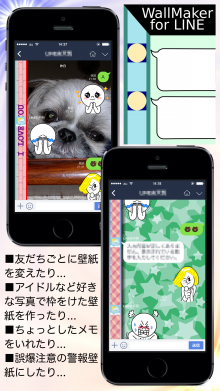


LINE・トーク画面のための壁紙作成アプリ。壁紙作郎、壁紙棚造、アイコン飾郎、チラ見せカレンダーに次ぐ壁紙作成シリーズ第5弾です!
■みなさんLINE・トーク画面の背景(壁紙)、変更できること知ってる?
■友だちのアイコンが表示される左側のエリアと、コメントや画像が表示される右側のエリアを分割して、お好きな壁紙を作ることによって、トーク画面の見た目を劇的に変化させることができます。
■左側のアイコンエリアには文字も入れられます。
1)先輩や上司に失礼な発言をしないように誤爆注意警報なんていう文字を入れて壁紙を作り、LINEトークの背景にしたり...。
2)お気に入りの相手のLINEトーク画面に、「恋人にするぞ~」みたいな言葉を入れて背景にしたり...。
3)どこで知り合ったのかをメモした壁紙を作って、LINEトークの背景にしたり...。
4)大好きなアイドルの写真を右の写真エリアに貼付けて、左側に「○○○さん命」などの言葉を入れた壁紙を作って、LINEトークの背景にしたり...。
けっこう、いろいろな使い方ができると思います。
■また、完成した壁紙をLINEで友だちに送ることもできます。自分をテーマにした壁紙を相手に送って、「自分の画面(背景)として使ってね」ってお願いして、相手のiPhoneの画面に貼付けてもらう、なんていう使い方もできますよね^.^/。
とは言うものの同じiPhoneじゃないとサイズが違うかもしれないので駄目かも...T.T
(壁紙トークのダウンロード数が多かったら、別のサイズのiPhone向けにも壁紙作成が可能になるようにしたいと考えています)。
■ツイッターへの投稿も可能です。タグも超簡単に付けられます。
※無料版の壁紙作成シリーズには通常、ロゴが入りますが、「壁紙トーク」には入りません。なお、有料版のリリースに伴い、ロゴが入るようになる可能性はありますが、現在のところ未定です。
※壁紙は縦専用となります。トーク画面を横にした場合、画像が拡大されてしまいますのでご了承ください。
※トーク画面への壁紙設定については、アプリ起動後に説明を参考にしてください。
※実機テストは「iPhone4s」「iPhone5S」および「iPad2」で行っております。
---iPadについて---
・「iPad2」では、作成した壁紙をトーク画面に設定した際に、ぼやける現象が起きています。
レティーナ用の大きな画像を使用してもぼやけてしまいます。
ちなみにライン用アプリ(LINE for iPad)には、「デザインの選択」という選択肢はなく、「写真を撮る」「アルバム」の2項目のみとなっています。写真を撮って背景に設定した際にもかなりぼやけた感じになります。よって、壁紙がぼやける現象は、ライン用アプリ(LINE for iPad)側による拡大縮小等が起因していると思われます。
・レティーナディスプレイ搭載のiPadに関しては、実機テストを行っていないため、ぼやけずに正常に表示できるかどうかは不明です。
---iPhoneについて---
・壁紙トークを使用して出来上がる画像サイズは、ディスプレイサイズx2となっています。
・画面上部に相手の名前等が表示され、画面下部に入力欄+送信ボタンが表示されます。iPhoneのディスプレイサイズによって、この上部と下部のサイズが異なるため、写真エリアに貼付ける画像はできるだけ縦の中央に収まるようにしてください。
・作成画面のプレビューで、上部と下部に斜線を目安として、これに被らないように写真をトリミングすると上手くいくと思います。
----------------------
This App is an application to create the background (wallpaper) for "LINE Chat" screen.
Using this application will make it easier to create unique wallpaper you have not ever seen.
You can make wallpaper for LINE chat screen by some steps.
[Add image]
There are two ways, such as the following.
[1]
Attach a photo that is in the camera roll.
Please tap Photo button.
[2]
Create an original image by specifying a favorite color. And Attach it.
Select the front color and the rear color. And Select the Shape.
When you create the shadow image, you select the front color only.
If the preview image is good or favorite, tap "Attach" button.
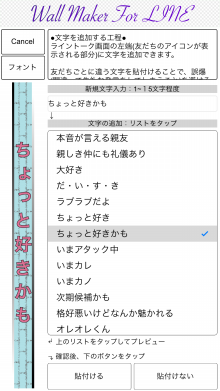
[Add character]
You can add the character to the left end of the LINE Chat screen (the area of the friends icon is displayed).
You can change the character of color and shape, orientation, etc.
[Note]
About the Area that are shaded.
On LINE Chat screen, there is the upper area that shown friend's name etc, there is the lower area that shown the entry field etc.
The shaded area will be hide by the both.
Depending on your model, The size of the shaded area (hidden area) may be different.
Please consider that the shaded area is approximate.
[How to set the wallpaper you made]
You can set the background image that you created by this app as follows.
1)Tap the button at the top right corner on "LINE Chat" screen.
2)Tap "Settings".
3)Tap "Chat Wallpaper".
4)Tap "Library".
5)Select your favorite photo.
6)Tap "OK".